
Android and Mac, finally working together.

Your phone's photos and files, open on your Mac. Copy on one, paste on the other, file backup, browsing & sharing. And 23 other unique features, all over your own Wi-Fi, with no cloud and no account.

Coming soon for Mac (macOS 14 or later) and Android 8 or later.

+19 more features

Your whole phone opens in a window on your Mac. Drag out the photos you want, play videos straight from the phone.

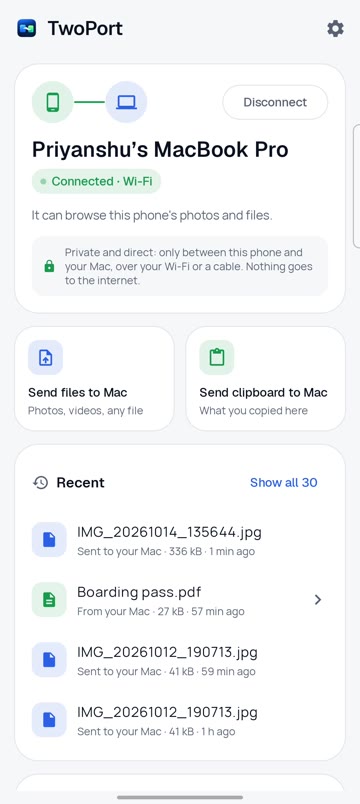
Every feature, recorded.

Filmed on a real MacBook and a real Android phone, with nothing staged. Each clip plays when you scroll to it.

Your phone on your Mac

01Browse every folderYour phone opens in a TwoPort window on your Mac: Camera, Downloads, WhatsApp, every folder.
02Search the whole phoneType a name, or ask for every video on the phone, newest first.
03Watch videos without downloadingDouble-click a video and it plays straight from the phone. Save a copy only if you want one.
04Flip through photosA gallery view you page through with the arrow keys.
05Rename, delete, new folderTidy up the phone from your Mac's keyboard.
06Several phones at onceYours, a work phone, the family's. Each one shows up by name.

Moving files

07Share from phone to MacIn any app, tap Share, then TwoPort. It lands in your Mac's Downloads a second later.
08Send from Mac to phoneRight-click files in Finder, or drop them on TwoPort in the menu bar.
09Drag from phone to MacDrag photos and files out of the TwoPort window into any folder on your Mac.
10Copy on phone, paste in FinderPress ⌘C in the TwoPort window and ⌘V in any Finder folder. Nothing downloads until you paste.

Backup

11Back up only what's newPhotos, videos, documents, music, apps, any file: you pick the kinds and folders. One click brings over what's new. Nothing is copied twice.
12Original dates keptPhotos and files keep the day they were made, not the day they were copied.
13Sorted by monthPhotos and videos in one folder per month; other files keep the phone's folders. Or pick your own folder.

Copy and paste

14Mac to phone, automaticTurn it on once on your Mac, then copy as usual. It's already on your phone's clipboard. Off by default, so your phone only gets what you choose to share.
15Phone to Mac, automaticTurn it on once in the phone app, then copy as usual and press ⌘V on your Mac.
16Send clipboard buttonA button in your phone's quick settings sends whatever you just copied.
17Photos and files tooCopy a screenshot on your Mac and paste it into a chat on your phone, and back.
18Clipboard historyEverything you copied on either side, a click away on your Mac.
19Passwords never crossAnything your phone or Mac marks as sensitive, like a password, stays where it is.

Always connected

20Pair onceScan a code once. After that, TwoPort finds your phone by itself.
21Reconnects by itselfWhenever your phone and Mac are on the same Wi-Fi. Nothing to tap.
22Keeps going when screens lockLock your phone or your Mac. A transfer carries on.
23USB cable, about 4× fasterPlug in and click Use USB once. Unplug any time and it carries on over Wi-Fi.

Friends and other phones

24Quick Send, no app neededA friend scans a code with their phone's camera and sends you photos from the web browser.
25Picks up after a breakIf the Wi-Fi drops mid-way, a big batch carries on from where it stopped.

Try it free. Pay once.

7 days of everything, then $29. No subscription.

$29one-time, after a 7-day free trial

$9Founding price for the first 100 people on the waitlist. We email you a code at launch.

  • Every feature in the trial, no card needed
  • One licence for up to 3 of your Macs
  • Free updates for all of TwoPort 1

Get one email at launch

One email at launch, nothing else. We never share your address.

Can't afford TwoPort? Ask for a free licence

Students, anyone between jobs, anyone for whom $29 is real money. You don't have to explain.

What other apps charge →

Good to know.

How do I set it up?

Install TwoPort on your Mac and your phone, then scan the code your Mac shows. That's it: from then on they find each other whenever they're on the same Wi-Fi.

Do I need a cable?

No. Your phone and Mac just need to be on the same Wi-Fi. A USB cable is optional: it's faster, and it works where the Wi-Fi keeps devices apart, like some offices.

Does it show my phone's screen on the Mac?

No. TwoPort moves things between the two: photos, videos, files and what you copy. Your phone's screen and apps stay on the phone.

Is it private?

Yes. Files go straight from your phone to your Mac, encrypted. Nothing is uploaded and there's no account.

Which phones and Macs?

Any phone with Android 8 or later, and a Mac with macOS 14 Sonoma or later.

Does it work with iPhone?

The app is for Android. An iPhone can still send photos and text to your Mac with Quick Send, from its web browser.